Business Look Up California: Search, Status and Filings
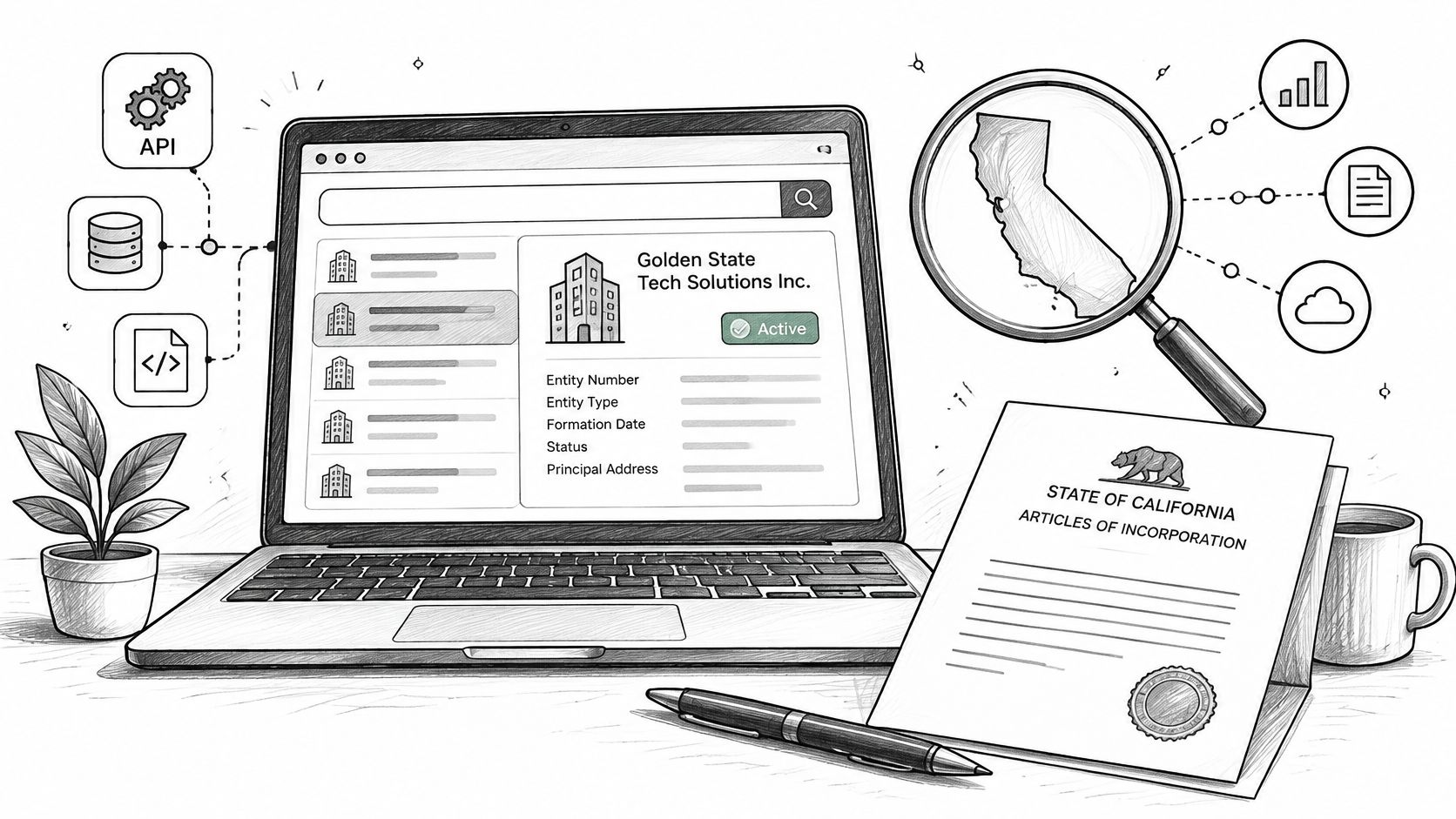
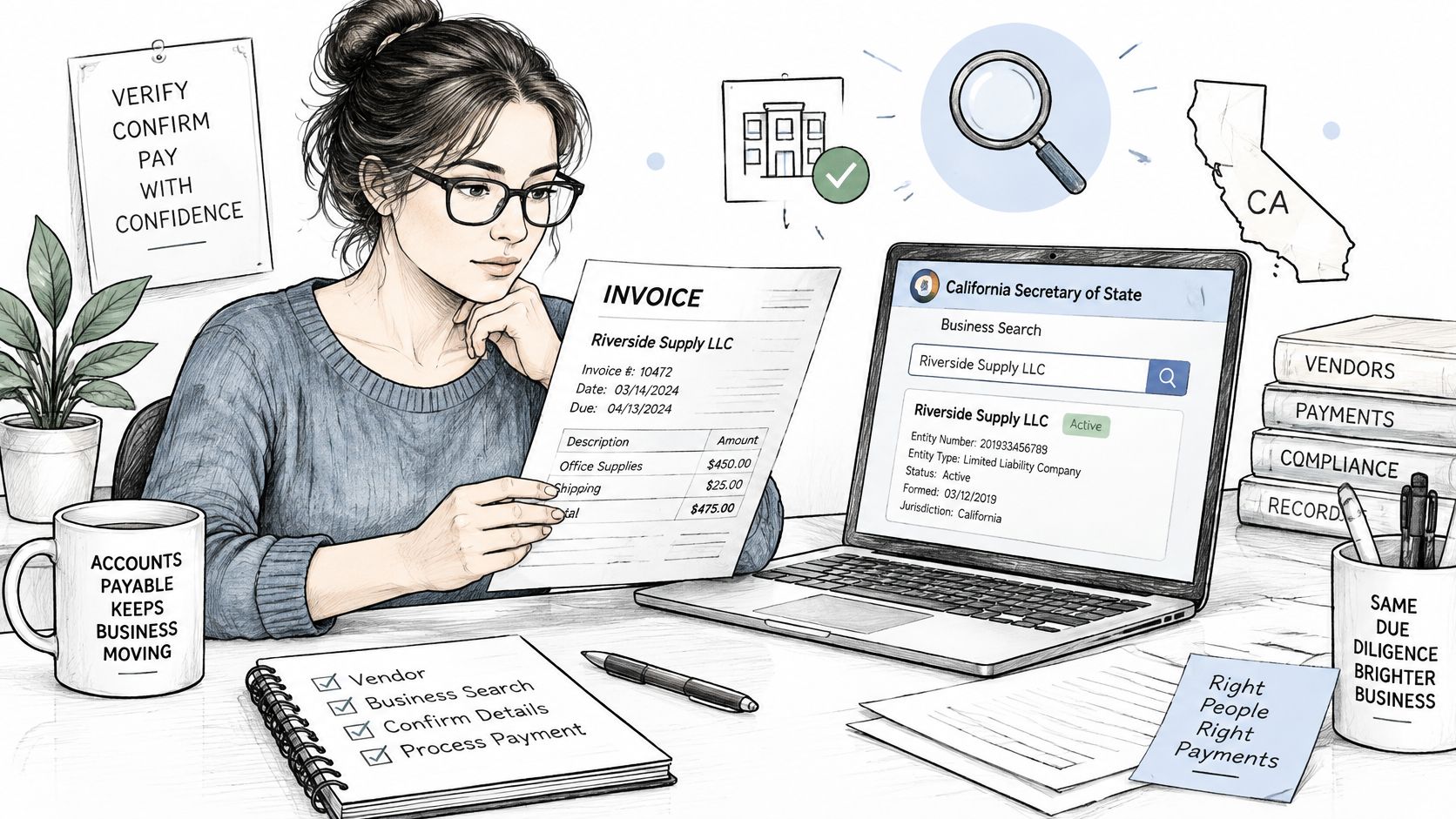
You've got an invoice on your desk from a California LLC your company has never paid before, and accounts payable wants an answer today: is this a real, active business, and is the name on the invoice the name on file with the state? A Business Look Up in California answers that first question well, if you treat the result as a dated snapshot. It shows what the registry held when you searched, not a permanent guarantee about the company.
What California's Business Search Covers
A California registry result answers three questions in one screen: does this entity exist, what does its standing look like today, and do the name and address match what you have on paper. For anyone approving a payment, signing a contract, or vetting a counterparty, that's the check that comes first.
The California Secretary of State Business Search page states that Business Search offers free online access to more than 17 million corporate, limited liability company, and limited partnership images. Searchable fields include name and identification number, formation, registration or conversion date, current status, jurisdiction, principal and mailing addresses, agent for service of process, and Statement of Information due date. Where applicable, you'll also see officer, director, member or manager information, plus plain copies of formation documents, amendments, terminations and statements of information.
Four Jobs People Actually Do Here
- Verify a new vendor: Confirm the entity exists and its status looks current before the first payment leaves your account.
- Check a client before signing: Match the legal name, type and jurisdiction on the draft contract against the state record.
- Research who runs a company: Review officers, managers and the agent for service when you need a real contact point.
- Monitor a partner over time: Recheck status and filing due dates so a standing change doesn't surprise you mid-contract.
What you pull up is a dated snapshot. The record proves the entity is registered and shows its standing on the day you searched, so note the search date in whatever file you're building. It doesn't prove beneficial ownership, and it doesn't show whether a name is free for you to use.
Start every lookup the same way: pull the exact legal name from the document in front of you, and copy the entity number too if it's printed there. Searching from memory or from a trade name is how people match the wrong company.
Entity Number Formats and What the Search Misses
Start with the entity type printed on your document. If you search in the wrong category, you'll get an empty result that looks like the business doesn't exist, when you've really just asked the wrong question. The identifier format is your fastest clue to which category you're holding.
| Record type | Identifier format | How to search |
|---|---|---|
| Corporation | C followed by seven digits | Search by number for one exact record |
| LLC or limited partnership | 12 digits | Search by number; name search also works |
| New corporation, LLC or limited partnership | 12 characters starting with B | Older records keep their original number |
| General partnership or LLP | Not in the online search | Submit a records request |
The California Secretary of State field and status definitions explain that the database is designed primarily for domestic stock and nonprofit corporations, qualified foreign corporations, limited liability companies, and limited partnerships, and it groups results by entity category regardless of whether an entity is currently active. Corporations use a "C" followed by a seven-digit number, while LLCs and limited partnerships use a 12-digit number, and newly registered corporations, LLCs and LPs are moving to 12-character identifiers beginning with "B" while existing numbers remain unchanged.
The Coverage Boundary That Trips People Up
The online search doesn't include every business type registered with the Secretary of State. General partnerships and limited liability partnerships sit outside it, and records for those categories may require a separate records request. Document availability also varies, since imaged Statements of Information are included for corporations and LLCs based on filing history.
An empty result is not proof that nothing is registered. For a general partnership or LLP, an empty result is exactly what the online search will give you.
That boundary changes how you should read a miss. If a known corporation returns nothing, check the type, the spelling and the number format before you conclude anything. If the entity is a partnership form outside the search, stop retyping the name and submit a records request instead. If you're unsure what an identifier on a document represents, our guide to what an entity ID is and how states assign it breaks down the formats state by state. Once you've confirmed the category, search by entity number whenever you have one.
How to Search by Name or Entity Number
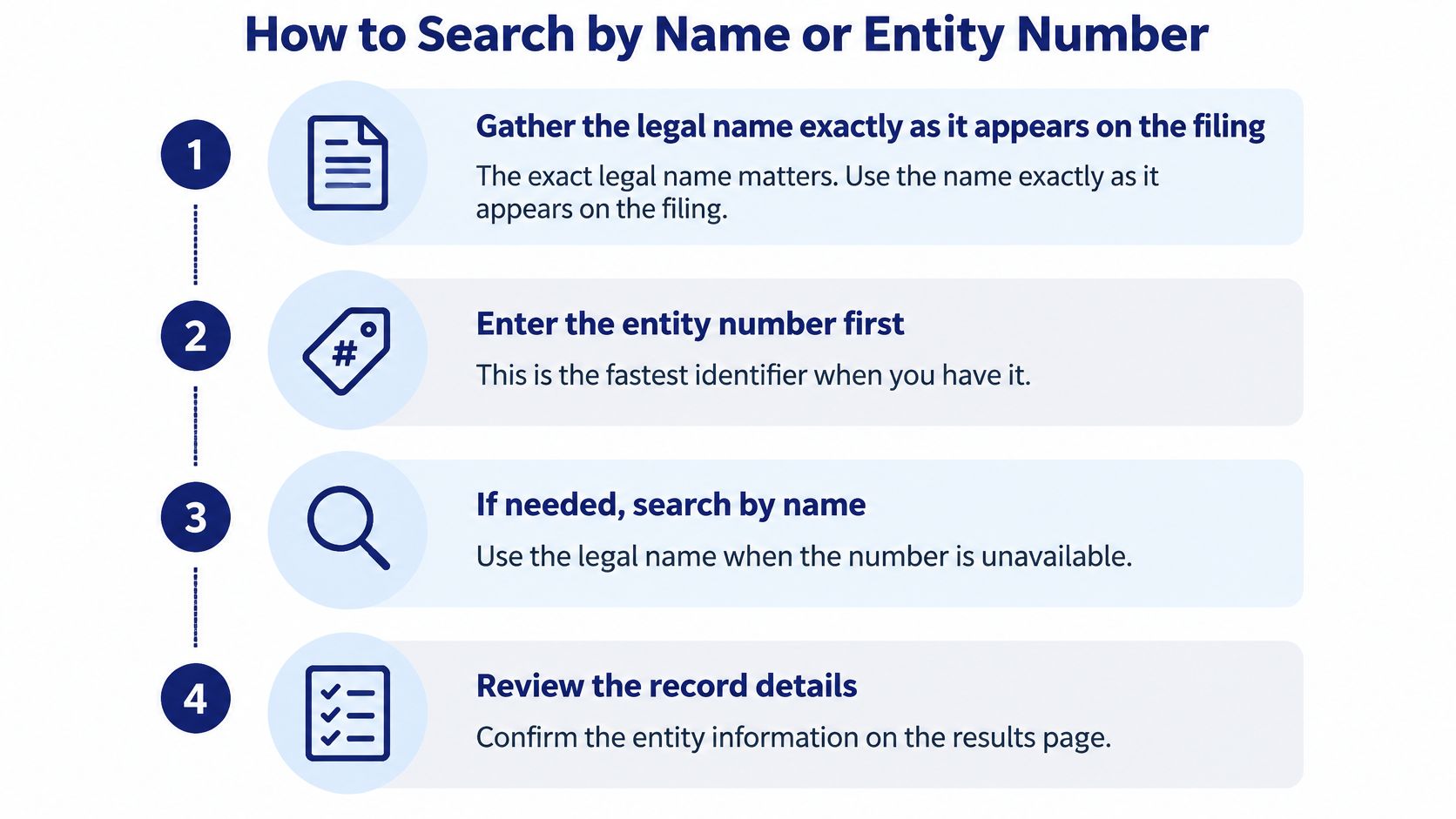
Use a two-stage method every time: identifier first, name second. An entity number points at one record. A name points at a list of candidates you still have to sort through, and California has enough similarly named companies to make that sorting matter.
The visual below compresses the routine into four moves, from gathering the legal name to reviewing the record.
The Procedure Step by Step
- Gather the legal name exactly as it appears on the filing, plus the entity number if your document shows one. A number removes most ambiguity before you start.
- Open the Secretary of State's Business Search and choose the business entity search.
- Search by number if you have one. A correct number should return one record, not a list.
- If you only have a name, run three passes: exact search first, then keyword, then begins-with, so near matches surface alongside the exact one.
- Normalize before typing. Remove extra spaces, keep punctuation variants such as commas and periods in mind, and don't worry about case, since the search ignores it.
- Compare every candidate against entity type, jurisdiction, formation date, status, principal address and agent for service before accepting it.
- Open the matched record and save it with the entity number, status and the date and time you retrieved it.
The California Secretary of State search tips confirm the mechanics behind this: the state search is not case-sensitive, treats letters as uppercase, and returns entities containing all supplied keywords. For name searches, you should normalize case and whitespace, retain punctuation variants, and test exact, keyword, and begins-with modes.
If you'd rather watch the search screens before running your first lookup, this walkthrough shows the flow end to end.
A common name can return dozens of results, so add the entity type word or the city to narrow the list. Never pick a match on name similarity alone. Two companies can share most of a name and differ in type, age and address, and picking the first plausible row is how a vendor file ends up attached to a stranger's record. Route ambiguous matches to a human reviewer rather than forcing a choice.
A clean match looks like this: one entity, the right type and jurisdiction, and an address and agent that fit the documents you already hold. If two of those three checks feel off, you don't have a match yet. You have a candidate.
Reading Status, Agent and Officer Fields Correctly
A record isn't a pass or fail verdict. It's a set of fields, and the order you read them determines whether you catch problems early or after you've already committed. I read status first, always, because everything else on the page matters less if the entity isn't active.
| Field | What to check | Why it matters |
|---|---|---|
| Entity status | Current status as shown on the record | Confirms the entity can still transact; anything other than active needs follow-up |
| Formation or registration date | Date the entity first registered | Shows age and helps flag very recent entities |
| Jurisdiction | State or country where the entity was formed | Foreign entities carry different risk and filing duties |
| Principal and mailing addresses | Match to your application or invoice | A mismatch is a question to resolve before paying or signing |
| Agent for service of process | Name and address of the agent | Shows where legal papers reach the entity |
| Statement of Information due date | Next filing deadline on the record | An overdue filing can affect the entity's standing |
| Officers, directors, members or managers | People listed where the record shows them | Supports ownership and management research; may be absent on some records |
A Reading Order That Works for Vendor Checks
Check status first. Anything other than active means pause and look at the filing history before you proceed, because paying or contracting with an entity that can't transact creates problems you can't undo with an email. If you're unsure how status language maps to standing, our explainer on what being in good standing actually means covers how states use the term.
Next, compare the formation or registration date against the age you expect. A vendor claiming a long track record but registered recently deserves a closer look, not an automatic rejection, but a question. Then confirm jurisdiction. A foreign entity registered to do business in California carries a different risk and filing profile than one formed in California, and your compliance steps may differ.
Compare principal and mailing addresses with your application or invoice. A mismatch isn't automatically a red flag, since businesses move and use mailing services, but it's a question to resolve before money moves. Check the agent for service of process to confirm there's a real place where legal papers reach the entity. Note the Statement of Information due date, since an overdue filing can affect standing. Finish with officers, directors, members or managers where the record shows them, remembering some records show none, and absence here means the state file is silent, not that nobody runs the company.
Coverage Gaps, Name Checks and Stale Records
The most common frustration isn't finding the search page. It's opening a record and seeing "Image not available online." That message doesn't mean the filing doesn't exist. It means you need to order a copy or submit an information request for that specific filing, and record the request date before you rely on the document.
The California Secretary of State processing dates page states that processing times vary by request type, submission method, and receipt date, and that end-of-year demand lengthens processing times. The Secretary of State also reports business-filing processing progress monthly to legislative and finance authorities, which tells you turnaround is a standing operational issue, not a rare hiccup. A filing submitted last week may not be posted yet.
Two Kinds of Freshness, Often Confused
Keep two things separate in your notes. The first is registry-record freshness: how current the record you retrieved is. The second is filing-processing status: whether a document someone submitted has worked through the queue. Say a lender approves a borrower based on a status pulled before a new filing posted, then learns the standing had already changed. The lookup wasn't wrong when it was run. It was old when the decision was made.
Name checks carry a similar trap. The California Secretary of State name reservations guidance makes clear that the online Business Search is only a preliminary search and is not intended to serve as a formal name-availability search. It compares a proposed name only with names of like entities registered with the Secretary of State, so a proposed corporation is checked against corporations, not against trademark, service-mark or fictitious business name records. Those conflicts need separate checks, and skipping them is how a cleared name turns into a trademark dispute.
| Symptom | Likely cause | Next step |
|---|---|---|
| Image not available online | Imaged copy not posted for that filing | Order a copy or submit an information request |
| Recent filing missing from record | Processing lag; end-of-year demand lengthens times | Note the receipt date and recheck after the processing window |
| No result for a known name | Entity is a general partnership or LLP outside the online search | Submit a records request |
| Dozens of similar names | Common name matches many keywords | Search by entity number or add the entity type word |
| Status differs from earlier lookup | Record was pulled before a filing posted | Recheck before final approval and flag the older snapshot |
Practical rule: Stamp every lookup with a date and time, save the snapshot, and flag any decision that rests on an older statement or an unavailable image.
If a search returns nothing and you've ruled out a type or spelling error, our guide to what to do when a business lookup finds no match walks through the escalation path. A fast lookup isn't necessarily a reliable one. Transparency about latency protects you more than speed does.
Choose Manual Lookups or API Automation for Your Volume
Decide by volume and repetition, not by enthusiasm for tooling. If you run a handful of lookups a month, manual searches on the Secretary of State site are fine. A person can open each record, read the fields in order, save a snapshot and move on, and the state search costs nothing.
Automation earns its place when the same checks repeat inside onboarding, KYC or monitoring workflows, where a person retyping names into a state website becomes the bottleneck and the error source. SOSfinder is an independent commercial service and isn't affiliated with, endorsed by, or acting on behalf of any Secretary of State, state agency or other government body. We provide one REST endpoint that looks up any business registered in all 50 states and DC, returning status, registered agent, formation date and filings, so California becomes one parameter rather than a separate integration.
How the Automated Call Works
To make a search, the developer authenticates with a secret key from the server side and calls GET /search with a state and a business name, using state and business_name parameters and an x-api-key header. For a known California entity, an entity search can look up one record directly by the state's registry ID field, entityId for California, the same way it uses entityId for NY, documentNumber for FL, fileNumber for DE, filingNumber for AR and controlNumber for GA. Keep the secret key on the server, never in browser code. Lookups that fail because a state registry is down aren't billed, since we only charge when we successfully fetch a fresh record.
Permitted uses include verifying businesses during onboarding, enriching CRM or lead records, underwriting and diligence, monitoring the standing of entities, and building products on the API. If you're wiring this up for the first time, our worked API integration example shows a complete request and response you can adapt.
Set Up the Workflow Before You Scale It
- Estimate monthly volume. Count new verifications plus rechecks on entities you already monitor, since rechecks often outnumber first lookups.
- Store the entity number and the raw response with a timestamp. Your audit trail is the response you received on that date, not whatever the record says later.
- Set a recheck schedule for each monitored entity. Tie it to your risk cycle, so a status change surfaces before renewal, payout or shipment.
- Route ambiguous matches to a human reviewer. Automation should flag the hard cases, not guess at them faster.
Manual lookup still wins for one-off legal research where you're reading documents closely and volume is trivial. Automation wins when the same California check runs inside every vendor onboarding and you need a consistent record of when it ran and what it returned. Before writing production code, run a test on a few known California entities where you already know the right answer, including one corporation with a C number and one LLC with a 12-digit number. If the integration handles those cleanly, plus one common name that returns similar filings for review, you're ready to build on it.
If California lookups are creeping into every onboarding and vendor check you run, SOSfinder lets you search by business name or California entityId through one endpoint covering all 50 states and DC, returning status, registered agent, formation date and filings in a consistent schema. Test it against a few California entities you already know, store each response with a timestamp, and build your recheck schedule from there.